Silk Mobile
Table of Contents (Homepage)
- Overview
- Setting Up
- Getting Started
- How To
- Connecting Devices And Emulators
- Preparing Applications For Testing
- Managing Applications
- Recording Tests
- Working With Test Commands
- Adding Commands To Your Scripts
- Object Commands
- Click
- ClickCoordinate
- ClickIn
- ClickOffset
- Drag
- ElementGetProperty
- ElementGetTableRowsCount
- ElementListPick
- ElementListSelect
- ElementListVisible
- ElementScrollToTableRow
- ElementSendText
- ElementSetProperty
- ElementSwipe
- ElementSwipeWhileNotFound
- GetAllValues
- GetElementCount
- GetElementCountIn
- GetTextIn
- IsElementBlank
- IsElementFound
- IsFoundIn
- LongClick
- RunNativeAPICall
- SendWhileNotFound
- VerifyElementFound
- VerifyElementNotFound
- VerifyIn
- WaitForElement
- WaitForElementToVanish
- GetCoordinateColor
- DragDrop
- Application Commands
- Device Commands
- Web (Hybrid) Specific Commands
- Utilities Commands
- Monitoring Commands
- Configuration Commands
- ExtractLanguageFiles
- SetDefaultClickDownTime
- SetDefaultTimeOut
- SetDefaultWebView
- SetDragStartDelay
- SetInKeyDelay
- SetKeyToKeyDelay
- SetLanguage
- SetLanguagePropertiesFile
- SetShowImageInReport
- SetShowPassImageInReport
- SetShowReport
- SetSpeed
- SetThrowExceptionOnFail
- SetWebAutoScroll
- StartStepsGroup
- StopStepsGroup
- TextFilter
- Miscellaneous Commands
- Controlling Element Identification Rules
- Editing Test Objects
- Executing Test Scripts
- Report Of Executed Test
- Working From Code Environment
- Continuous Integration
- Layout Verification Tests
- Use Device Vitals Monitors
- Troubleshooting
- Terminology
Java JUnit4
To export a code to Junit, you need to:
1. Get the test code in Java language
2. Integrate Silk Mobile and Junit
Following is a step-by-step description of how to do it.
Step 1: Export test code in Java (Junit):
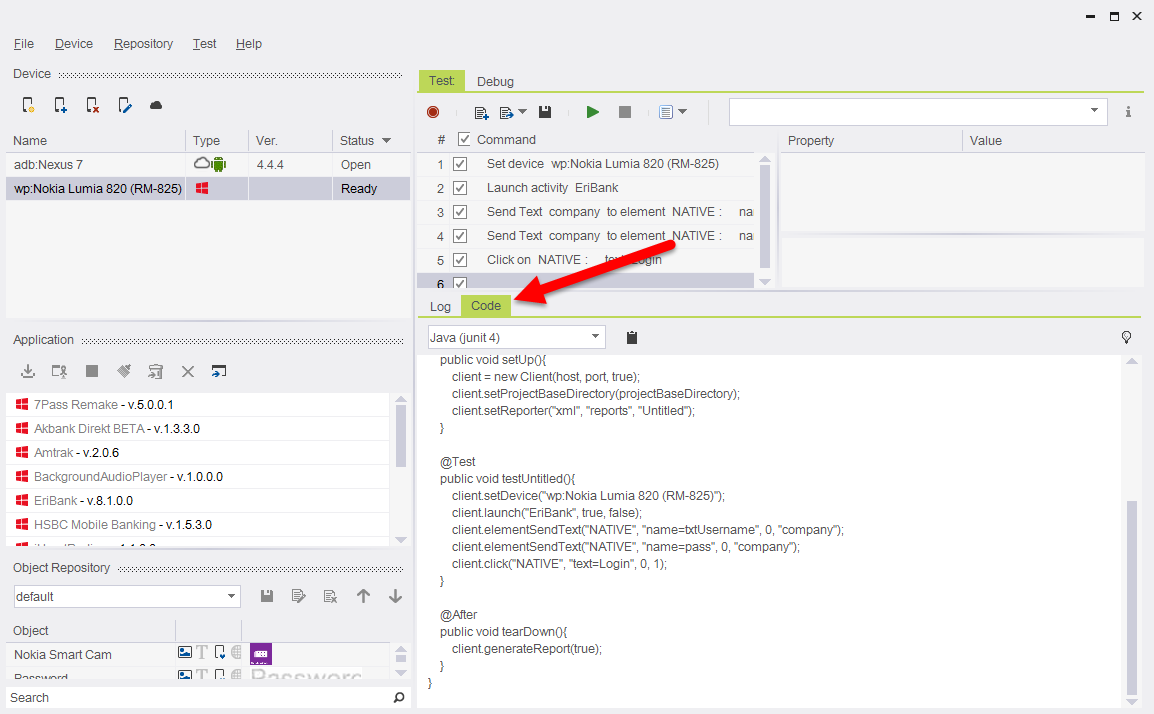
Step 2: Once created a script, select ‘Code’ tab in the main window
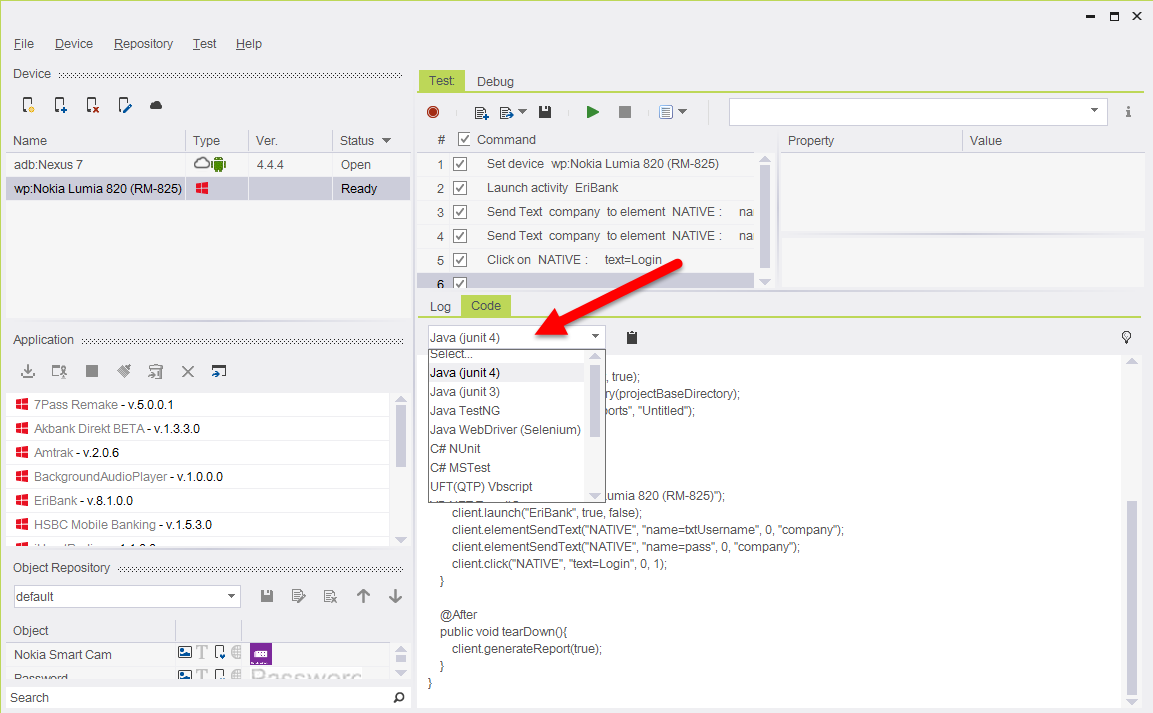
Step 3: Then choose “Java (junit4)”.
Step 4:
Then click on ‘Copy to Clipboard’ icon 
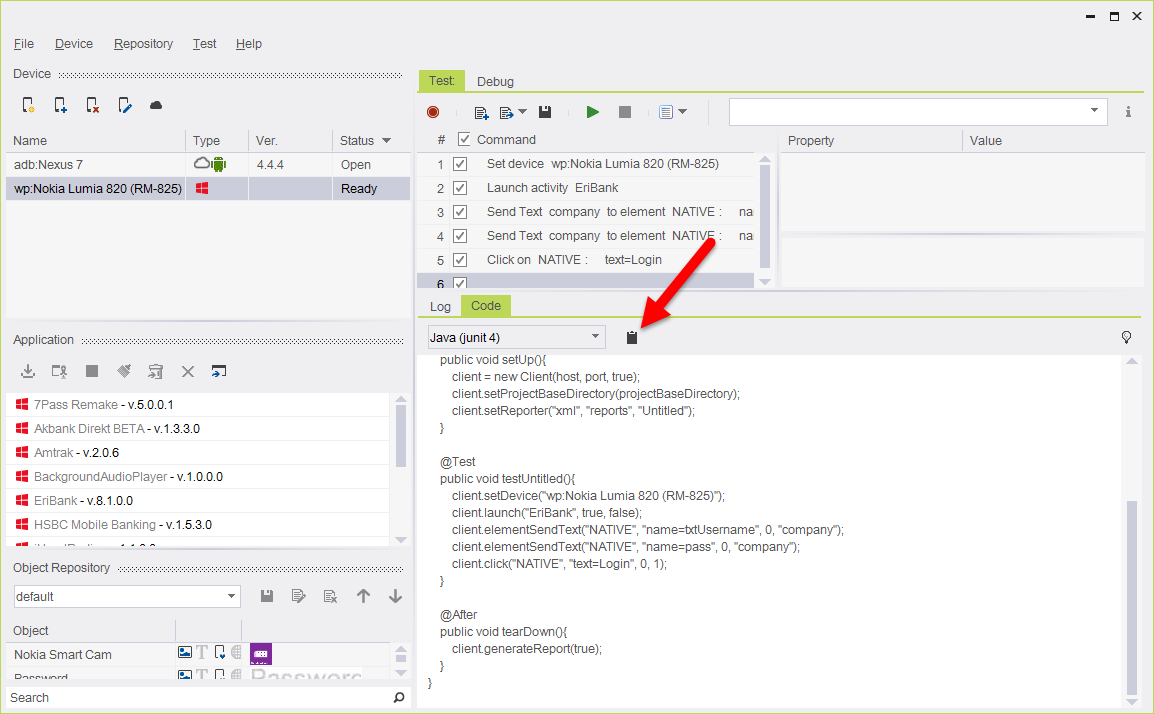
The generated code has been copied to the clipboard of your system.
Step 5: Now paste the code to the JUnit testing environment you are using.
Following is an example of such an exported code:
//package <set your test package>;importcom.experitest.client.*;importorg.junit.*; public class MyTest {privateString host = "localhost";private int port = 8889;protectedClient client = null; @Before public void setUp(){client = new Client(host, port);client.setReporter("xml", "reports");}@Test public void testUntitled(){client.waitForDevice("@os=’android’, 30000);}@After public void tearDown(){client.generateReport(true);}}Step 6: Integrate of scripts into JUnit Testing environment:
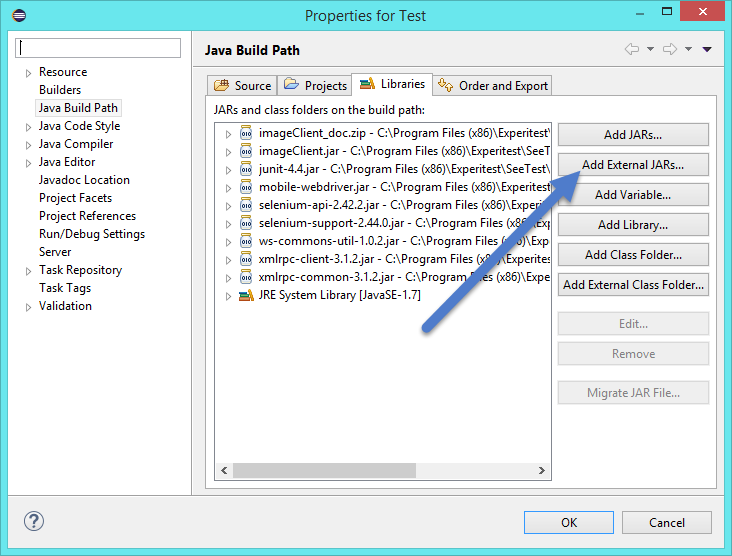
To integrate the scripts to your Java environment, you can use the built-in Java client of Silk Mobile. The client is composed of a several jars under the client folder in your installation directory (..../Client/Java)
Following is the list of the jars which are required for the integration:
-
imageClient.jar
-
xmlrpc-client-3.1.2.jar
-
xmlrpc-common-3.1.2.jar
-
ws-common-util-1.0.2.jar
-
junit.jar (optional for junit users)
If you are using eclipse your Java build path should look as follows: